conTAct Developer Guide
- Acknowledgements
- Setting up, getting started
- Design
- Documentation, logging, testing, configuration, dev-ops
- Appendix: Requirements
- Appendix: Instructions for Manual Testing
- Appendix: Effort
- Appendix: Planned Enhancements
Acknowledgements
- The features add, list, edit, find, delete, clear and exit (including the code) was reused with changes made from AB3.
Setting up, getting started
Refer to the guide Setting up and getting started.
Design
 Tip: The
 .puml files used to create diagrams in this document docs/diagrams folder. Refer to the PlantUML Tutorial at se-edu/guides to learn how to create and edit diagrams.
Architecture
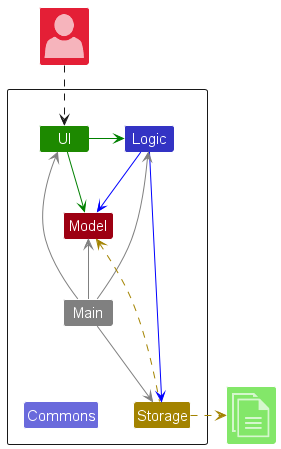
The Architecture Diagram given above explains the high-level design of the App.
Given below is a quick overview of main components and how they interact with each other.
Main components of the architecture
Main (consisting of classes Main and MainApp) is in charge of the app launch and shut down.
- At app launch, it initializes the other components in the correct sequence, and connects them up with each other.
- At shut down, it shuts down the other components and invokes cleanup methods where necessary.
The bulk of the app’s work is done by the following four components:
-
UI: The UI of the App. -
Logic: The command executor. -
Model: Holds the data of the App in memory. -
Storage: Reads data from, and writes data to, the hard disk.
Commons represents a collection of classes used by multiple other components.
How the architecture components interact with each other
The Sequence Diagram below shows how the components interact with each other for the scenario where the user issues the command delete n/Alice.
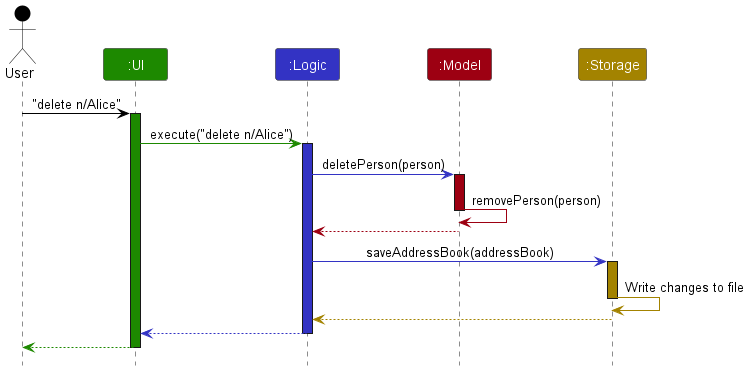
Each of the four main components (also shown in the diagram above),
- defines its API in an
interfacewith the same name as the Component. - implements its functionality using a concrete
{Component Name}Managerclass (which follows the corresponding APIinterfacementioned in the previous point.
For example, the Logic component defines its API in the Logic.java interface and implements its functionality using the LogicManager.java class which follows the Logic interface. Other components interact with a given component through its interface rather than the concrete class (reason: to prevent outside component’s being coupled to the implementation of a component), as illustrated in the (partial) class diagram below.
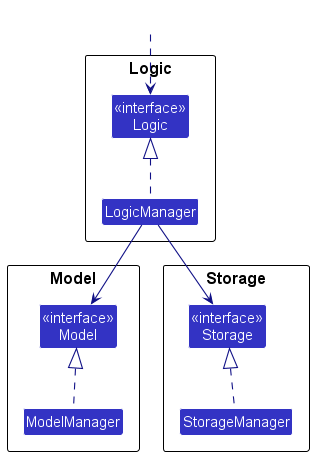
The sections below give more details of each component.
UI component
The API of this component is specified in Ui.java
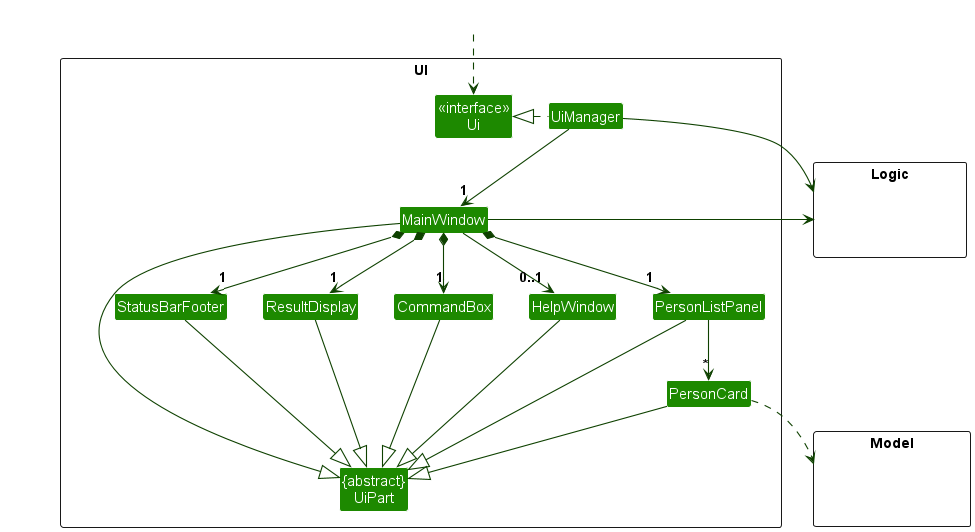
The UI consists of a MainWindow that is made up of parts e.g.CommandBox, ResultDisplay, PersonListPanel, StatusBarFooter etc. All these, including the MainWindow, inherit from the abstract UiPart class which captures the commonalities between classes that represent parts of the visible GUI.
The UI component uses the JavaFx UI framework. The layout of these UI parts are defined in matching .fxml files that are in the src/main/resources/view folder. For example, the layout of the MainWindow is specified in MainWindow.fxml
The UI component,
- executes user commands using the
Logiccomponent. - listens for changes to
Modeldata so that the UI can be updated with the modified data. - keeps a reference to the
Logiccomponent, because theUIrelies on theLogicto execute commands. - depends on some classes in the
Modelcomponent, as it displaysPersonobject residing in theModel.
Logic component
API : Logic.java
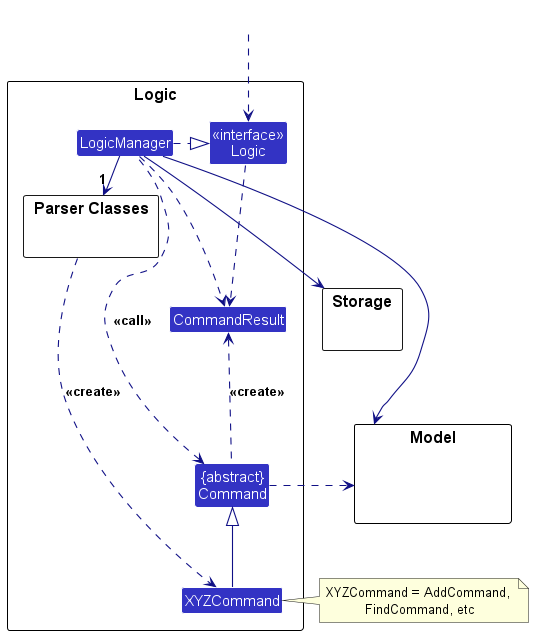
Here’s a (partial) class diagram of the Logic component:
The sequence diagram below illustrates the interactions within the Logic component, taking execute("delete n/Alice") API call as an example.
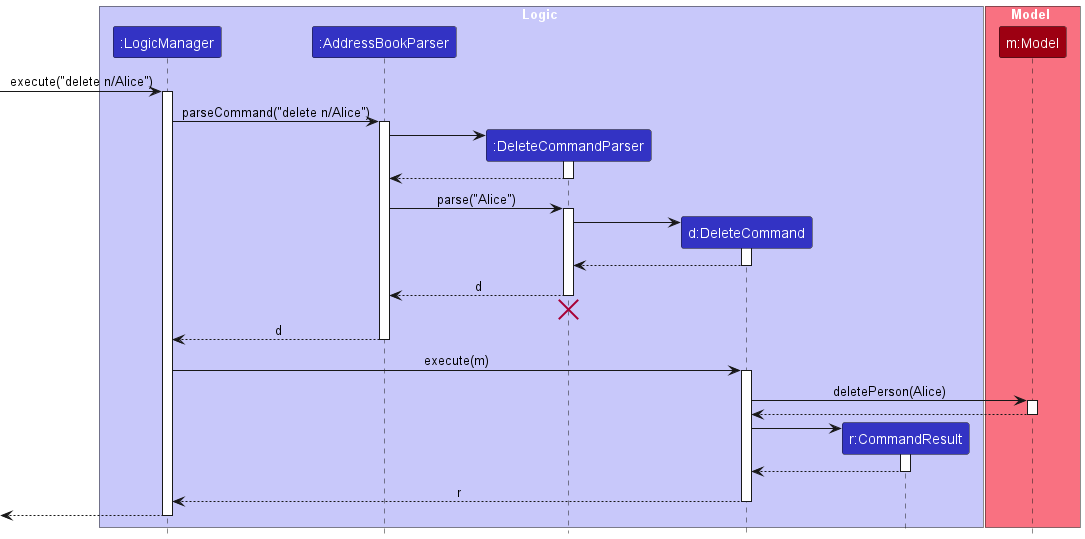
 Note: The lifeline for
 DeleteCommandParser should end at the destroy marker (X) but due to a limitation of PlantUML, the lifeline continues till the end of diagram.
How the Logic component works:
- When
Logicis called upon to execute a command, it is passed to anAddressBookParserobject which in turn creates a parser that matches the command (e.g.,DeleteCommandParser) and uses it to parse the command. - This results in a
Commandobject (more precisely, an object of one of its subclasses e.g.,DeleteCommand) which is executed by theLogicManager. - The command can communicate with the
Modelwhen it is executed (e.g. to delete a person).
Note that although this is shown as a single step in the diagram above (for simplicity), in the code it can take several interactions (between the command object and theModel) to achieve. - The result of the command execution is encapsulated as a
CommandResultobject which is returned back fromLogic.
Here are the other classes in Logic (omitted from the class diagram above) that are used for parsing a user command:
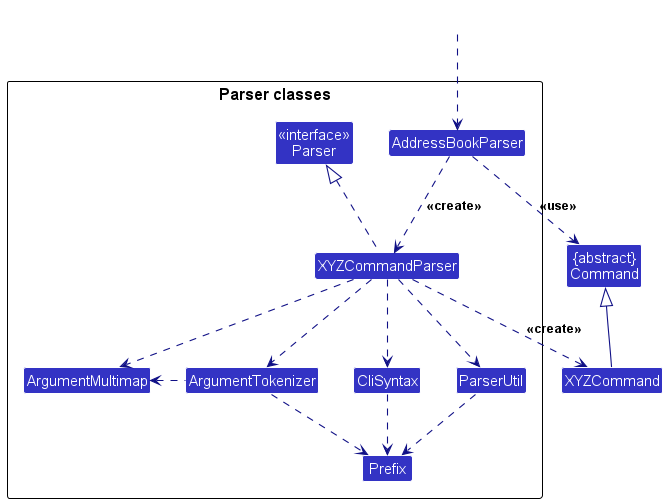
How the parsing works:
- When called upon to parse a user command, the
AddressBookParserclass creates anXYZCommandParser(XYZis a placeholder for the specific command name e.g.,AddCommandParser) which uses the other classes shown above to parse the user command and create aXYZCommandobject (e.g.,AddCommand) which theAddressBookParserreturns back as aCommandobject. - All
XYZCommandParserclasses (e.g.,AddCommandParser,DeleteCommandParser, …) inherit from theParserinterface so that they can be treated similarly where possible e.g, during testing.
Model component
API : Model.java
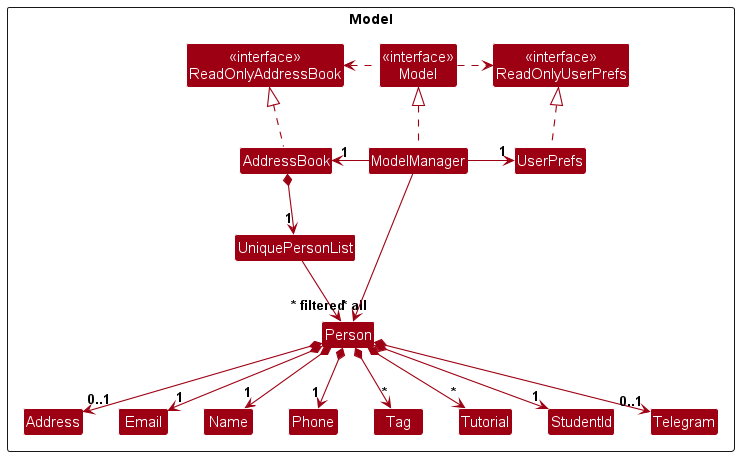
The Model component,
- stores the address book data i.e., all
Personobjects (which are contained in aUniquePersonListobject). - stores the currently ‘selected’
Personobjects (e.g., results of a search query) as a separate filtered list which is exposed to outsiders as an unmodifiableObservableList<Person>that can be ‘observed’ e.g. the UI can be bound to this list so that the UI automatically updates when the data in the list change. - stores a
UserPrefobject that represents the user’s preferences. This is exposed to the outside as aReadOnlyUserPrefobjects. - does not depend on any of the other three components (as the
Modelrepresents data entities of the domain, they should make sense on their own without depending on other components)
Note: An alternative (arguably, a more OOP) model is given below. It has a Tag list in the AddressBook, which Person references. This allows AddressBook to only require one Tag object per unique tag, instead of each Person needing their own Tag objects.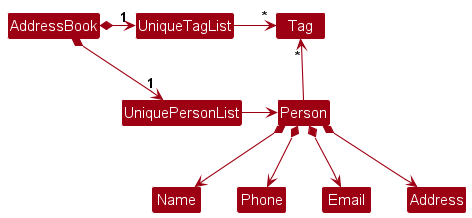
Storage component
API : Storage.java
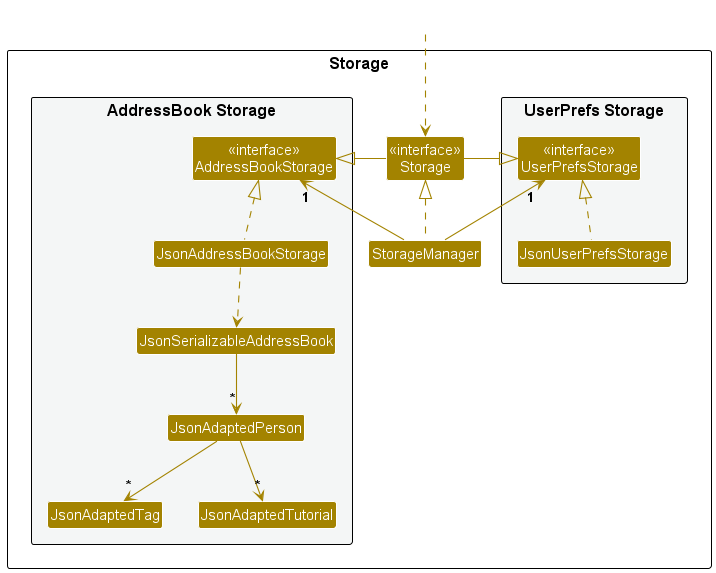
The Storage component,
- can save both address book data and user preference data in JSON format, and read them back into corresponding objects.
- inherits from both
AddressBookStorageandUserPrefStorage, which means it can be treated as either one (if only the functionality of only one is needed). - depends on some classes in the
Modelcomponent (because theStoragecomponent’s job is to save/retrieve objects that belong to theModel)
Common classes
Classes used by multiple components are in the seedu.address.commons package.
Documentation, logging, testing, configuration, dev-ops
Appendix: Requirements
Product scope
Target User Profile:
Primary Users:
- Teaching Assistants (TAs) managing multiple students.
Secondary Users:
- Students accessing their records (future feature consideration).
Value Proposition: conTAct helps TAs efficiently organize and manage student information, reducing administrative workload and improving accessibility. The app provides a centralized platform for tracking student details, communication, and academic progress.
User Stories
Priorities: High (must have) - * * *, Medium (nice to have) - * *, Low (unlikely to have) - *
| Priority | As a … | I want to … | So that I can… |
|---|---|---|---|
* * * |
new TA | import a list of students and professors | don’t have to manually enter all the contacts. |
* * |
new TA | send a message to multiple students at once | make announcements efficient |
* * * |
TA | delete the contact details of a student | update my list of students |
* * * |
TA | add the contact details of a student | keep track of my students |
* * * |
TA | list the contact details of all my students | display and view my list of students |
* * * |
TA | find a student’s contact information quickly | contact them conveniently |
* * |
TA | filter contacts | find relevant contacts easily |
Excluded from Initial Release
- Student self-service portal.
- Mobile application version.
Use cases
(For all use cases below, the System is conTAct and the Actor is the User, unless specified otherwise)
System: conTAct
Actor: User
Use Case: UC01 - Deleting student contacts
Guarantees: If MSS reaches step 4, the requested student contact(s) will be deleted
MSS:
- User requests to list student contacts.
- conTAct displays a list of contacts.
- User requests to delete specific contacts in the list.
-
conTAct deletes the contacts and confirms that the contacts have been deleted.
Use case ends.
Extensions:
- 1a. conTAct detects an invalid list command.
- 1a1. conTAct alerts the user.
- 1a2. User retypes the command.
- Use case resumes from step 2.
- 3a. conTAct is unable to find some of the specified contact(s).
- 3a1. conTAct alerts the user.
- 3a2. User retypes the command.
- Use case resumes from step 4.
- 3b. conTAct uncovers a prefix with an empty value.
- 3b1. conTAct alerts the user.
- 3b2. User retypes the command with a non-empty value.
- Use case resumes from step 4.
- 3c. conTAct uncovers invalid contact identifiers.
- 3c1. conTAct alerts the user.
- 3c2. User retypes the command with valid identifiers.
- Use case resumes from step 4.
System: conTAct
Actor: User
Use Case: UC02 - Finding a student by name
Guarantees: If MSS reaches step 2, conTAct will return a list of students whose names match the keyword
MSS:
- User enters the keyword for the student name.
-
conTAct shows the matching results.
Use case ends.
Extensions:
- 1a. conTAct detects an empty input.
- 1a1. conTAct alerts the user.
- 1a2. User retypes the command.
- Use case resumes from step 2.
System: conTAct
Actor: User
Use Case: UC03 - Editing a student contact
Guarantees: If MSS reaches step 2, the student will have the specified fields updated
MSS:
- User requests to edit a student by index.
-
conTAct updates the specified fields and confirms the update.
Use case ends.
Extensions:
- 1a. Index not found.
- 1a1. conTAct alerts the user.
- 1a2. User retypes the command.
- Use case resumes from step 2.
- 1b. Empty field value.
- 1b1. conTAct alerts the user.
- 1b2. User retypes the command.
- Use case resumes from step 2.
- 1c. Invalid format.
- 1c1. conTAct alerts the user.
- 1c2. User retypes the command.
- Use case resumes from step 2.
System: conTAct
Actor: User
Use Case: UC04 - Adding a student
Guarantees: A new student will be added to the contact list
MSS:
- User enters the add command with student details.
-
conTAct adds the student and confirms successful addition.
Use case ends.
Extensions:
- 1a. Missing required prefix.
- 1a1. conTAct alerts the user.
- 1a2. User retypes the command.
- Use case resumes from step 2.
- 1b. Invalid student ID or telegram format.
- 1b1. conTAct alerts the user.
- 1b2. User retypes the command.
- Use case resumes from step 2.
System: conTAct
Actor: User
Use Case: UC05 - Listing student contacts
Guarantees: If MSS reaches step 3, the contact list is displayed with relevant fields
MSS:
- User requests to list all students.
- conTAct displays the list of students.
-
conTAct confirms successful listing.
Use case ends.
Extensions:
- 1a. User provides invalid prefix formatting.
- 1a1. conTAct alerts the user.
- 1a2. User retypes the command.
- Use case resumes from step 2.
System: conTAct
Actor: User
Use Case: UC06 - Saving contact data
Guarantees: If MSS reaches step 2, data is saved to the specified file
MSS:
- User requests to save data.
-
conTAct saves the data and confirms the save.
Use case ends.
Extensions:
- 1a. Invalid filename.
- 1a1. conTAct does not run the command.
- 1a2. User retypes the command.
- Use case resumes from step 2.
System: conTAct
Actor: User
Use Case: UC07 - Loading contact data
Guarantees: If MSS reaches step 2, data is loaded successfully from file
MSS:
- User requests to load data from a file.
-
conTAct loads the data and displays confirmation.
Use case ends.
Extensions:
- 1a. File not found or invalid format.
- 1a1. conTAct alerts the user.
- 1a2. User retypes the command or uses a valid file.
- Use case resumes from step 2.
System: conTAct
Actor: User
Use Case: UC08 - Accessing help information
Guarantees: If MSS reaches step 2, help information is displayed
MSS:
- User requests help.
-
conTAct displays help information.
Use case ends.
Extensions:
- 1a. Help for a specific command.
- 1a1. conTAct displays command-specific help.
- Use case ends.
- 1b. Invalid help command.
- 1b1. conTAct alerts the user.
- 1b2. User retypes a valid help command.
- Use case resumes from step 1a1.
Non-Functional Requirements
- Performance: The system should handle up to 100 student records efficiently without significant delays in operations such as searching, adding, or deleting.
- Usability: The interface should be simple and intuitive, requiring minimal training for Teaching Assistants (TAs) to use effectively.
- Error Handling: The system should provide clear and actionable error messages for invalid commands, missing fields, or corrupted data files.
-
Compatibility: The application should run on any mainstream OS (i.e. Windows, Linux, Unix, MacOS) with Java
17or above installed. - Data Persistence: All data should be saved in JSON format and persist across application restarts.
- Security: The system should restrict access to sensitive data by ensuring that only valid commands can modify or delete records.
- Scalability: The system should allow for future enhancements, such as adding new fields or features, without requiring significant changes to the existing architecture.
- Maintainability: The codebase should follow clean coding practices and include sufficient documentation to allow future developers to understand and extend the system.
- Extensibility: The system should allow for the addition of new commands or features (e.g., undo/redo, ticking attendances) with minimal disruption to existing functionality.
- Responsiveness: The system should provide immediate feedback for user actions, such as displaying success or error messages after executing commands.
Glossary
| Term | Definition |
|---|---|
| AddressBook | The main data structure that stores all Person objects in the application. |
| Command | A user instruction to the application, such as add, delete, find, or list. |
| CommandResult | The result of executing a command, which includes feedback messages to the user. |
| GUI | Graphical User Interface, the visual interface of the application that users interact with. |
| JSON | JavaScript Object Notation, a lightweight data-interchange format used for saving and loading data. |
| MainApp | The entry point of the application, responsible for initializing and launching the app. |
| Model | The component responsible for managing the application’s data and business logic. |
| ObservableList | A list that allows listeners to track changes to its elements, used for updating the UI dynamically. |
| Parser | A component that interprets user input and converts it into executable commands. |
| Person | A data model representing a student, including fields like name, phone, email, and tags. |
| Prefix | A short identifier used in commands to specify fields (e.g., n/ for name, p/ for phone). |
| Student ID | A unique identifier for students, following the NUS Student ID format: starts with A, followed by 7 digits, and ends with an uppercase letter (e.g., A1234567X). |
| Tag | A label associated with a Person to categorize or group them (e.g., friend, classmate). |
| Telegram | A field in the Person model representing the student’s Telegram handle. |
| Tutorial | A field in the Person model representing the student’s enrolled tutorial groups. |
| Undo/Redo | A proposed feature to revert or reapply the last executed commands. |
| UserPref | A data model representing user preferences, such as window size and file paths. |
| Validation | The process of ensuring that user input meets the required format or constraints. |
| VersionedAddressBook | A proposed extension of the AddressBook that supports undo/redo functionality. |
| View | The visual representation of data in the UI, such as the list of students displayed. |
Appendix: Instructions for Manual Testing
Given below are instructions to test the app manually.
Note: These instructions only provide a starting point for testers to work on; testers are expected to do more exploratory testing.Launch and Shutdown
Initial Launch
- Ensure you have Java
17or above installed on your computer. You can learn how to do so here. - Download the latest
.jarfile from here. - Copy the file to the folder you want to use as the home folder for your address book.
- Open a command terminal (learn how to do so here).
- Type
cd [YOUR_FOLDER_LOCATION]where[YOUR_FOLDER_LOCATION]is the path to the folder containing the jar file. (Learn more here). - Type
java -jar <filename>.jar(e.g java -jar conTAct.jar) and press Enter. A GUI should appear in a few seconds.
Shutdown
- Type
exitin the command box to close the application. -
OR click the
Filebutton and selectExitfrom the dropdown menu.
Saving Window Preferences
- Resize the window to an optimum size and move it to a different location.
- Close the window.
- Re-launch the app by double-clicking the jar file.
- Expected: The most recent window size and location should be retained.
Testing the Core Commands
1. Help Command
-
Test Case: Type
helpin the command box. - Expected Result: A help message is displayed explaining how to access the help page along with the list of available commands and their formats.
- Notes: Check that the help content includes examples and tips for each command.
2. Adding a Person
-
Valid Input:
-
Test Case:
add n/Mai p/12341234 e/student@example.com s/A1234567XExpected: A new person is added to conTAct.
-
Test Case (with optional fields):
Copy both lines as a single command
add n/Mai p/12341234 e/student@example.com s/A1234567X
t/needsCare tut/CS2103 tut/CS2109S a/Kent Ridge Hall
Expected: The new person is added with tags, tutorials, and an address.
-
Test Case:
-
Invalid Input:
- Test Case: Try omitting any required field (for example, leave out the student ID).
- Expected: An error message is displayed in the status bar indicating the missing required field.
-
Edge Cases:
- Test with extra spaces or unusual but valid characters in optional fields.
- Verify that input constraints (e.g., student ID format, alphanumeric tags/tutorial names) are enforced.
3. Listing All Persons
-
Default Listing:
-
Test Case: Type
list - Expected: A list of all persons is displayed with all fields.
-
Test Case: Type
-
Customized Listing:
-
Test Case:
list n/ p/Expected: Only the names and phone numbers of all persons are displayed.
-
Test Case:
list n/ e/ t/Expected: Only the names, emails, and tags are displayed.
-
Test Case:
- Notes: Confirm that the list reflects any changes made by previous commands (such as add, edit, or delete).
4. Editing a Person
-
Valid Edits:
-
Preparation: Use
listto note the index of the person you want to edit. -
Test Case:
edit 1 p/91234567 e/johndoe@example.comExpected: The 1st person’s phone number and email are updated accordingly.
-
Test Case (Clearing Tags):
edit 2 n/Betsy Crower t/Expected: The 2nd person’s name is changed to “Betsy Crower” and all tags are cleared.
-
Preparation: Use
-
Invalid Edits:
-
Test Case: Use an index that does not exist (e.g.,
edit 99 n/Name) - Expected: An error message indicating an invalid index is displayed.
-
Test Case: Enter
editwith no optional fields. - Expected: An error message prompting that at least one field is required for editing.
-
Test Case: Use an index that does not exist (e.g.,
- Notes: Verify that changes are reflected immediately in the list command output.
5. Finding Persons by Attributes
-
Search by Name (Full Word Matching):
-
Test Case:
find n/JohnExpected: Only persons whose names match exactly “John” (as a full word) are shown.
-
Test Case:
-
Search by Phone Number or Email (Partial Matching):
-
Test Case:
find p/123Expected: Persons with phone numbers containing “123” are displayed.
-
Test Case:
find e/exampleExpected: Persons with email addresses that include “example” are shown.
-
Test Case:
-
Search by Tag or Tutorial (Full Word Matching):
-
Test Case:
find t/friendExpected: Only persons tagged exactly as “friend” are listed.
-
Test Case:
find tut/CS2103TExpected: Only persons in tutorial “CS2103T” are shown.
-
Test Case:
- Notes: Verify that the search is case-insensitive and that the ordering of keywords in names does not affect the results.
6. Deleting a Person or a Group of Persons
-
Deleting by Name:
-
Test Case:
delete n/JohnExpected: All persons whose full name matches “John” are deleted.
-
Test Case:
-
Deleting by Tag:
-
Test Case:
delete t/friendExpected: All persons tagged as “friend” are deleted.
-
Test Case:
-
Deleting by Student ID:
-
Test Case:
delete s/A1234567XExpected: Only the person with the exact student ID is deleted.
-
Test Case:
-
Invalid Delete Commands:
-
Test Case:
deleteExpected: An error is shown because the command lacks a field/value.
-
Test Case:
delete x/Expected: An error is shown due to an invalid prefix.
-
Test Case:
-
Notes: After deletion, run the
listcommand to verify the updated list of persons.
7. Clearing All Entries
-
Test Case: Type
clear -
Expected: All entries are removed from conTAct. Verify by using the
listcommand; the list should now be empty. - Notes: Confirm that a confirmation or warning is displayed (if applicable) before clearing all entries.
8. Exiting the Program
-
Test Case (Command): Type
exit- Expected: The application terminates gracefully.
-
Test Case (Menu Option): Click the
Filebutton and selectExit- Expected: The application terminates gracefully.
Saving, Loading, and Managing Files
Saving Data
-
Test Case:
save testExpected: The current address book data is saved to a file named
test.jsonin the default directory (a folder nameddatain the current directory storing the program’s jar file), and a success message is displayed in the status bar. -
Test Case:
saveExpected: An error message indicating that a filename is required.
-
Test Case:
save [invalid/filename]Expected: The command will not be run
Loading Data
-
Preparation: Ensure a valid JSON file (e.g.,
example.json) exists in the default directory (a folder nameddatain the current directory storing the program’s jar file). You can runsave examplebefore this to ensure this. Ensure that the person objects in the json file also contains all the attributes of a person (even though some of these attributes might be empty strings) for the load command to work. -
Test Case:
load exampleExpected: The address book data is replaced with the contents of
example.json, with a success message in the status bar. -
Test Case:
load nonExistentFileExpected: An error message indicating that the specified file does not exist.
-
Test Case:
Go to the saved
example.jsonfile saved in the default directory. Then change the value of the files (E.g. duplicate an entry or delete an entry’s student ID) to make the file invalid. Then run:load exampleExpected: An error message indicating that the file is corrupted or invalid.
Listing All Saved Files
-
Test Case:
filesExpected: A list of all saved files in the default directory is displayed in the result panel.
-
Test Case:
fileswhen no files exist
Expected: A message is displayed indicating that no saved files are available.
Dealing with Missing/Corrupted Data Files
-
Simulating a Missing File:
- Manually rename or remove the data file (e.g.,
addressbook.json). - Launch the application.
- Expected Behavior: The app detects the absence of the file, recreates it with default data, and logs a warning message.
- Manually rename or remove the data file (e.g.,
-
Simulating a Corrupted File:
- Open the data file (e.g.,
addressbook.json) in a text editor. - Modify its content so that it is not valid JSON (for example, delete or alter key structural elements).
- Launch the application.
- Expected Behavior: The app notifies the user about the corrupted file, attempts to restore data from a backup if available, or resets to a default state while logging the error.
- Open the data file (e.g.,
Additional Exploratory Testing
-
Invalid Command Formats:
Try commands with typos or extra spaces (e.g.,add n/Mai p/12341234) and verify that the app returns a clear error message. -
Field Boundary Testing:
Test the input constraints for each field. For example, provide an incorrectly formatted student ID, non-alphanumeric characters in tag names, or an invalid phone number format. -
User Interface:
Verify that all GUI components (such as the status bar, menus, and command box) behave as expected during and after executing commands. -
Error Logging:
Check that the status bar and any log files (if applicable) accurately report errors and warnings.
Appendix: Effort
Developing conTAct required a significant level of effort beyond the original AB3 codebase. While we reused the base logic and UI structure of AB3, approximately 70-80% of the total effort was spent on extending and adapting the system to suit our Teaching Assistant use case, which is considerably more complex than AB3’s single-entity address book.
Difficulty and Challenges
On top of AB3, conTAct introduced multiple fields such as student ID, multiple tutorials per student, and telegram handles. Each of these fields required not only parser and model extensions, but also strict validation logic. A particularly challenging aspect was ensuring the correct handling of optional (address, telegram) and repeatable fields (tags, tutorials) and implementing strict format constraints (e.g., student ID structure, email format).
We also implemented a custom deletion mechanism based on prefixes and keywords, which required field-specific search and validation logic. This was more complex than AB3’s delete-by-index functionality.
The addition of file save/load commands, support for listing all saved files, and custom display filtering through list [PREFIX]... significantly increased the complexity of both the logic and UI layers. Furthermore, considerable effort went into input validation and user experience design to ensure meaningful and non-disruptive feedback to users.
Effort Required
In total, the team spent roughly:
-
20–30% of effort adapting AB3’s base commands (
add,edit,list, etc.) - 50% implementing new features, such as save/load/files, prefix-based filtering, and enhanced validations
- 20–30% on documentation, testing, GUI polishing, and bug fixing
We reused AB3’s command framework, parser structure, and GUI skeleton, but even reused components required extensive modification. For example, the AddCommandParser.java and EditCommandParser.java were heavily restructured to handle optional and multiple fields like telegram, tags, and tutorials.
One concrete reuse was the use of AB3’s command parsing logic. We extended it significantly with additional validation layers, especially for the add, edit, and find commands. For example, we retained the parser framework but added complex checks for student ID, email format, and phone number constraints in the new utility class StudentFieldValidator.java.
Achievements
- Designed a robust multi-field CLI application tailored to a real-world TA use case.
- Implemented custom command semantics (e.g., delete by attribute, list field filtering).
- Ensured high extensibility, allowing for future features like attendance tracking and import/export.
- Achieved full test coverage for critical commands and logic layers.
conTAct, while starting from AB3, evolved into a substantially more complex and polished system. We believe this demonstrates both technical competency and thoughtful software design.
Appendix: Planned Enhancements
Team Size: 4
-
Make email field unique and follows NUS email format: Currently, the add command allows the same email to be added, and it does not have to follow NUS email format (@nus.edu.sg). We plan to improve it by making the email field unique, and only NUS email can be added.
-
Make tutorial field follow NUS courses format: Currently, the tutorial can just take in any string, not necessarily in the format of a course code (e.g CS2103T). We plan to improve it by making it follow NUS course code format.
-
List all students after delete command: If a user use the find command to filter out a student, and then use delete command to delete the student, the app will display a blank list. We plan to update it to display the whole list after the delete command is called.
-
Delete command improvements: If a student is enrolled in multiple tutorials (or has multiple tags), deleting a specific tutorial (or tag) will only remove that tutorial (or tag) from the student’s record. However, if the student is enrolled in only one tutorial (or has only one tag), deleting that tutorial (or tag) will result in the deletion of the student from the list.
-
Ensure uniqueness of phone number and Telegram handle: When using the
addcommand to add a student or theloadcommand to load a.jsonfile, we plan to implement a check to ensure that phone numbers and Telegram handles are unique across all students. -
Remove gaps in the GUI: When using the
listcommand with only specific fields or theaddcommand to add a student with missing optional fields, the gap in the student card should be removed to ensure a cleaner and more consistent display. -
Allow special characters in names: Enable the use of special characters such as
/to accommodate names withS/OorD/O, as well as names in other languages that include special characters.