conTAct User Guide
conTAct is a desktop app designed to help Teaching Assistants efficiently manage student lists and information. It’s optimized for fast use via the Command Line Interface (CLI), while still offering the ease of a Graphical User Interface (GUI). If you’re comfortable typing commands, conTAct makes tracking students, managing tutorials, and updating records quicker than traditional GUI-based apps.
- Quick start
- Features
- FAQ
- Known issues
- Command summary
Quick start
-
Ensure you have Java
17or above installed in your Computer. You are advised to run the app using Java17.
Refer to this Java installation guide for more help on installing and switching between Java versions.
Mac users: Ensure you have the precise JDK version prescribed here. -
Visit conTAct’s Github Releases here.
-
Find the latest release. Under “Assets”, find the
.jarfile (e.g conTActv1.6.jar). Click the.jarfile to download it. -
Choose or create a folder where you want to store and run conTAct. Copy the
.jarfile to this folder. -
Open a command terminal.
Windows Users: PressWindows + R, typecmd, and hit Enter.
Mac Users: Open Terminal from the Launchpad or Spotlight (Cmd + Space, then type “Terminal”).
Linux Users: Open your Terminal from the Applications menu. -
Navigate into the folder you put the jar file in using
cd <folder_name>. (e.gcd folder) -
Type
java -jar <name_of_file>.jar(e.g java -jar conTAct.jar) in the terminal, and then Enter to run the application.
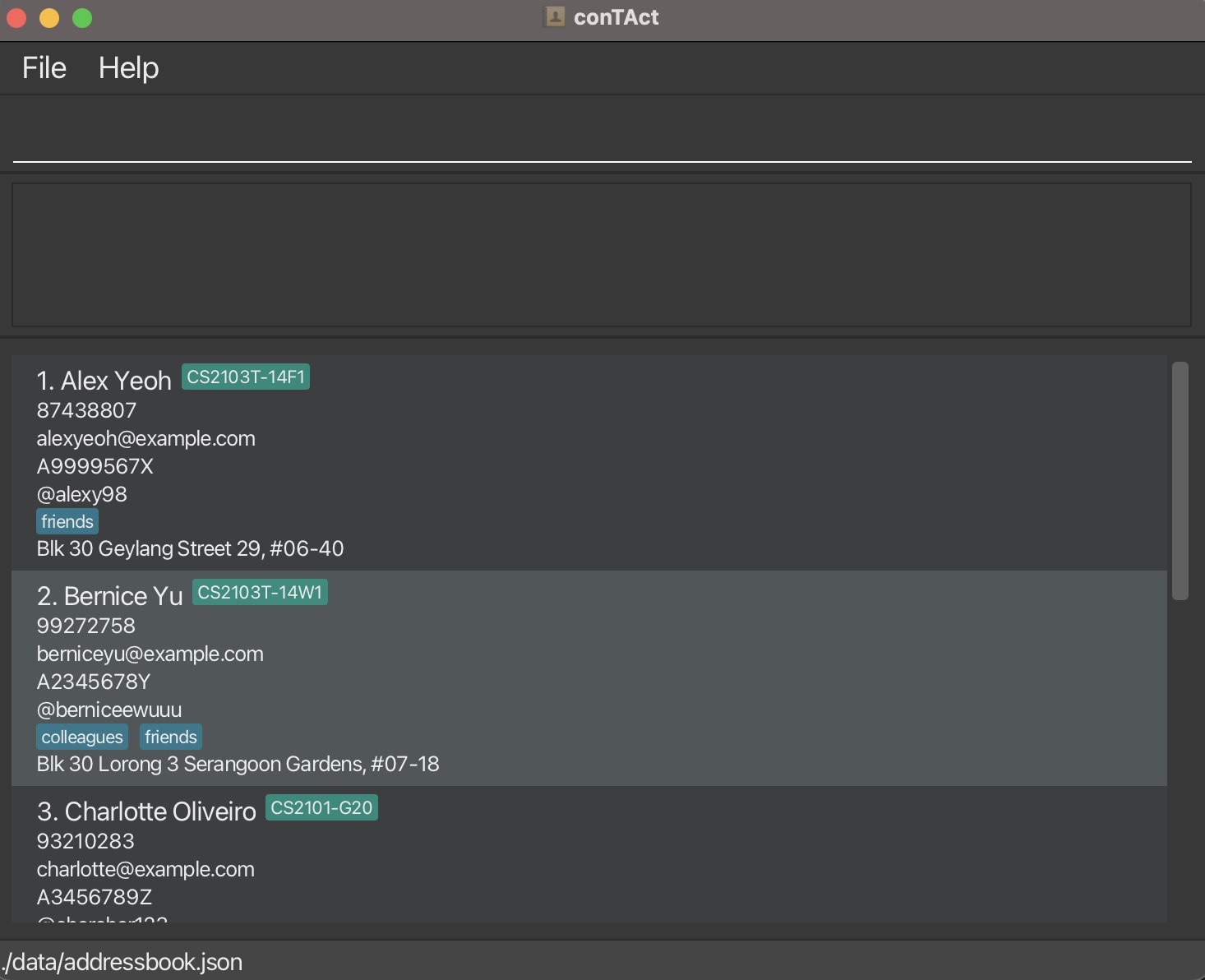
A GUI similar to the below should appear in a few seconds.
-
Type the command in the command box and press Enter to execute it. e.g. typing
helpand pressing Enter will open the help window.
Some example commands you can try:-
list: Lists all contacts. -
add n/John Doe p/98765432 e/johnd@example.com s/A1234567X: Adds a student namedJohn Doeto conTAct. -
delete n/John Doe: Deletes John Doe from the contact list. -
clear: Deletes all contacts. -
exit: Exits the app.
-
-
Refer to the Features below for details of each command.
Features
 Notes about the command format:
-
Command words ARE case sensitive.
e.g.deletewill be a valid command word butDELETEorDeletewill not be accepted. -
Prefixes ARE case sensitive.
e.g./nwill be a valid prefix but/Nwill not be accepted. -
Words in
UPPER_CASEare the parameters to be supplied by the user.
e.g. inadd n/NAME,NAMEis a parameter which can be used asadd n/John Doe. -
Items in square brackets are optional.
e.gn/NAME [t/TAG]can be used asn/John Doe t/friendor asn/John Doe. -
Items with
… after them can be used multiple times including zero times.
e.g.[t/TAG]…can be used ast/friend,t/friend t/familyetc. -
Parameters can be in any order.
e.g. if the command specifiesn/NAME p/PHONE_NUMBER,p/PHONE_NUMBER n/NAMEis also acceptable. -
Student duplicates are checked using student ID. We do not check for uniqueness in other attributes such as name, email, phone number and telegram handle.
-
Extraneous parameters for commands that do not take in parameters (such as
help,exitandclear) will be ignored.
e.g. if the command specifieshelp 123, it will be interpreted ashelp. -
If you are using a PDF version of this document, be careful when copying and pasting commands that span multiple lines as space characters surrounding line-breaks may be omitted when copied over to the application.
🔹 Basic Operations
Viewing help : help
Shows a message explaining how to access the help page.

Format: help
Exiting the program : exit
Exits the program.
Format: exit
🟢 Managing Contacts
Adding a student : add
Format: add n/NAME p/PHONE_NUMBER e/EMAIL s/STUDENT_ID [te/telegram] [t/TAG]... [tut/TUTORIAL]... [a/ADDRESS]
 Input constraints:
- A student can have any number of tags (including 0) and any number of tutorials (including 0).
Input constraints:
- A student can have any number of tags (including 0) and any number of tutorials (including 0).- The address and telegram field is optional.
- Student ID should starts with an A, followed by 7 numbers and a capital letter (A-Z).
- Phone numbers only contain numbers, should be at least 3 digits long, and may include ‘+’, ‘(‘, and ‘)’ for country code. E.g: (+65)12341234.
- Emails should be of the format
1. The local-part should only contain alphanumeric characters and these special characters, excluding the parentheses, (+_.-). The local-part may not start or end with any special characters.
2. This is followed by a '@' and then a domain name. The domain name is made up of domain labels separated by periods.
The domain name must:
2a. end with a domain label at least 2 characters long.
2b. have each domain label start and end with alphanumeric characters.
2c. have each domain label consist of alphanumeric characters, separated only by hyphens, if any.
- Telegram should be alphanumeric values or underscores.
- Tutorial names and tag names should be alphanumeric values, tutorials can have hyphens.
Examples:
add n/Mai p/12341234 e/student@example.com s/A1234567Xadd n/Mai p/12341234 e/student@example.com s/A1234567X t/leader tut/CS2103 te/mai2002add n/Mai p/12341234 e/student@example.com s/A1234567X t/leader tut/CS2103 te/mai2002 a/Kent Ridge
Editing a student : edit
Edits an existing student in conTAct.
Format: edit INDEX n/NAME p/PHONE_NUMBER e/EMAIL s/STUDENT_ID [te/telegram] [t/TAG]... [tut/TUTORIAL]... [a/ADDRESS]
- Edits the student at the specified
INDEX. The index refers to the index number shown in the displayed person list. The index must be a positive integer 1, 2, 3, … - At least one of the optional fields must be provided.
- Existing values will be updated to the input values.
- When editing tags, the existing tags of the person will be removed i.e adding of tags is not cumulative.
- You can remove all the person’s tags by typing
t/without specifying any tags after it. - You can remove all the person’s tutorial by typing
tut/without specifying any tutorials after it. - You may edit to the exact same information as before.
Tip:
The index refers to the list currently being shown. (e.g If you type find n/John Doe and John Doe appears on the top of the list, typing edit 1 will edit John Doe’s information)
Examples:
edit 1 p/91234567 e/johndoe@example.comedit 2 n/Betsy Crower t/
Deleting a student or a group of students : delete
Deletes students from the list based on the specified field and value.
Only one field is allowed in each delete.
Format: delete PREFIX KEYWORD
- Deletes all students whose specified field matches the given keyword.
- The deletion is case-insensitive. e.g.,
alicewill matchAlice. - For fields like
nameandstudent ID, all keywords must match exactly. - You can only delete students that are displayed
For example, if you run
find n/John Doeand students named “John Doe” are displayed, you cannot delete “Alice” who exists in the list but is not displayed. - Supported prefixes and their behavior:
| Prefix | Field | Behavior | Example |
|---|---|---|---|
n/ |
Name | Matches all keywords in the name field exactly. |
delete n/John Doe deletes John Doe but not Johnny or Jonathan. |
e/ |
Matches the email exactly. |
delete e/johnd@example.com deletes the person with email johnd@example.com. |
|
t/ |
Tags | Matches the tag exactly. |
delete t/friend deletes all persons tagged as friend but not best-friend. |
s/ |
Student ID | Matches the student ID exactly. |
delete s/A1234567X deletes the person with student ID A1234567X. |
te/ |
Telegram | Matches the Telegram handle exactly. |
delete tg/johndoe deletes the person with Telegram handle @johndoe. |
tut/ |
Tutorials | Matches the tutorial name exactly. |
delete tut/CS2103T deletes all persons in the tutorial CS2103T. |
Examples:
-
delete n/John- Deletes all students with names containingJohn, such asJohn Doe,Johnny, andJohnathan. -
delete t/friends- Deletes all students tagged asfriends. -
delete s/A1234567X- Deletes the student with the exact student IDA1234567X. -
delete tut/CS2103T- Deletes all students in the tutorialCS2103T.
 Caution:
The action is irreversible and no confirmation will be prompted!
Caution:
The action is irreversible and no confirmation will be prompted!
Clearing all entries : clear
Clears all entries from conTAct.
Format: clear
🔍 Searching & Viewing Contacts
Listing all students : list
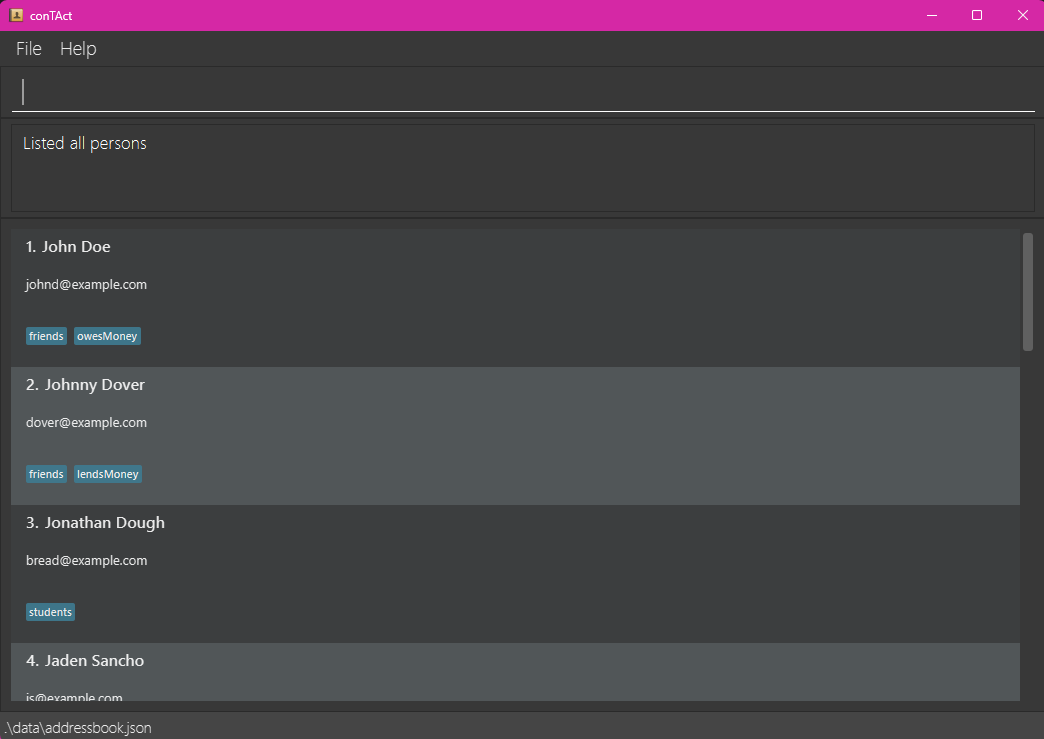
Shows a list of all students in conTAct. You can customize the fields displayed in the person cards using prefixes.
Note: This command is for customizing the display of information based on the user’s preference and is not meant for searching purposes. If you want to search for specific students, refer to the find command.
Format: list [PREFIX]...
- If no prefixes are provided, all fields will be displayed by default.
- Supported prefixes:
-
n/- Show name -
p/- Show phone number -
e/- Show email -
a/- Show address -
s/- Show student ID -
te/- Show telegram -
t/- Show tags -
tut/- Show tutorials
-
- You can combine multiple prefixes to display specific fields.
Examples:
-
list- Displays all persons with all fields. -
list n/ p/- Displays all persons with only their name and phone number. -
list n/ e/ t/- Displays all persons with their name, email, and tags.
Locating students by attributes : find
Finds students whose fields match any of the given keywords.
Only one field is allowed in each find.
Format: find PREFIX KEYWORD
- The search is case-insensitive. e.g.,
hanswill matchHans.
| Prefix | Field | Behavior | Example |
|---|---|---|---|
n/ |
Name | Matches any keyword in the name field. |
find n/John returns John Doe, Johnny, and Jonathan. |
p/ |
Phone number | Partial matches are supported. |
find p/123 returns people with phone numbers 12345 and 91234567. |
e/ |
Partial matches are supported. |
find e/example returns people with emails example@example.com and test@example.com. |
|
a/ |
Address | Partial matches are supported. |
find a/Main returns people with addresses 123 Main Street and Main Avenue. |
t/ |
Tags | Only full words will be matched. Partial matches are not supported. |
find t/friend returns all persons tagged as friend but not best-friend. |
s/ |
Student ID | Partial matches are supported. |
find s/A1234567X returns the person with student IDs A1234567X and A4561237E. |
tut/ |
Tutorials | Only full words will be matched. Partial matches are not supported. |
find tut/CS2103T returns all persons in the tutorial CS2103T but not CS2103. |
te/ |
Telegram | Partial matches are supported. |
find te/johndoe returns persons with Telegram handles like @johndoe or johndoexyz. |
📂 Data Management
Automatically saving the data
All data changes are saved automatically to [JAR location]/data/addressbook.json.
Saving the data manually : save
Format: save [FILE_NAME]
- Saves the current address book data to a specified file.
- The data will be saved in json files, which are stored in the folder
datain the directory that contains the program’s jar file. - Please take note that if the user saves to a file that has already existed (E.g. the user previously saved to test.json and now run
save test), the previously saved version will be replaced with the new version. Because of this, we advise users to use thefilescommand to see all the saved files before saving to prevent duplicates.
Examples:
-
save backup- Saves the data tobackup.json. -
save backup.json- Saves the data tobackup.json.
Caution:
Do not save files as “addressbook” as it will be overwritten by the data file that is automatically saved when you exit the app.
Loading data from a file : load
Loads data from a specified file.
Format: load [FILE_NAME]
- The file must be a valid JSON file containing the required field.
- If the file is not found or the format is invalid, an error message will be displayed, and the current data will remain unchanged.
- Please take note that once a saved file is loaded, the current data if not saved will be erased. Make sure to save the current data before loading if this is undesirable.
- Since the addressbook is autosaved in the file
addressbook.json, loading this file will simply load the current addressbook.
Examples:
-
load backup- Loads data frombackup.json. -
load backup.json- Loads data frombackup.json.
Listing all saved files : files
Displays a list of all saved files in the application’s data directory.
Format: files
- The command will list all files with their names and extensions.
- Files are displayed in alphabetical order.
Editing the data file
conTAct data are saved automatically as a JSON file [JAR file location]/data/addressbook.json. Advanced users are welcome to update data directly by editing that data file.
Caution:
If your changes to the data file makes its format invalid, conTAct will discard all data and start with an empty data file at the next run. Hence, it is recommended to take a backup of the file before editing it.Furthermore, certain edits can cause the conTAct to behave in unexpected ways (e.g., if a value entered is outside of the acceptable range). Therefore, edit the data file only if you are confident that you can update it correctly.
FAQ
Q: How do I transfer my data to another Computer?
A: Install the app in the other computer and overwrite the empty data file it creates with the file that contains the data of your previous conTAct home folder.
Alternatively, save a copy of your data as a .json file using the save <file_name> command. Then, send the .json file directly to the other Computer and load it in the
conTAct app using the load <file_name> command.
Known issues
-
When using multiple screens, if you move the application to a secondary screen, and later switch to using only the primary screen, the GUI will open off-screen. The remedy is to delete the
preferences.jsonfile created by the application before running the application again. -
If you minimize the Help Window and then run the
helpcommand (or use theHelpmenu, or the keyboard shortcutF1) again, the original Help Window will remain minimized, and no new Help Window will appear. The remedy is to manually restore the minimized Help Window.
Command summary
| Action | Format, Examples |
|---|---|
| Add |
add n/NAME p/PHONE_NUMBER e/EMAIL [te/TELEGRAM] [t/TAG] [tut/TUTORIAL] [a/ADDRESS]… e.g., add n/James Ho p/22224444 e/jamesho@example.com te/jameshuai t/friend t/colleague tut/CS2103 a/123, Clementi Rd, 1234665
|
| Clear | clear |
| Delete |
delete PREFIX KEYWORDe.g., delete n/John, delete t/friends, delete s/A1234567X
|
| Edit |
edit INDEX [n/NAME] [p/PHONE_NUMBER] [e/EMAIL] [t/TAG] [tut/TUTORIAL] [a/ADDRESS]…e.g., edit 2 n/James Lee e/jameslee@example.com
|
| Find |
find PREFIX KEYWORDe.g., find n/John, find t/friend, find tut/CS2103T
|
| List |
list [PREFIX]...e.g., list, list n/ p/, list n/ e/ t/
|
| Save |
save FILE_PATHe.g., save test
|
| Load |
load FILE_PATHe.g., load test
|
| Files | files |
| Help | help |